• Like it

Visual - WYSIWYG TEI Editor

Creating TEI Documents based on Templates

<oXygen/> comes with the TEI DTDs, XML Catalog, XSL stylesheets and document templates so that you can start working right away with TEI documents. You can edit documents guided by the context sensitive content assistant, easily validate the edited documents and transform them to HTML or PDF for presentation. We cooperate with the TEI Consortium and we are committed to keep the TEI support up to date in future <oXygen/> releases.

WYSIWYG TEI editor

Templates are documents containing a predefined structure. They provide starting points on which to rapidly build new documents that repeat the same basic characteristics. <oXygen/> installs a rich set of templates for a number of XML applications, including a set of predefined templates for TEI XML documents.

New TEI document from Templates

Preserve style markup on copy and paste from external applications

Styled content can be inserted by copying content from Office applications (Microsoft Word and Microsoft Excel, OpenOffice.org Writer and OpenOffice.org Calc) and Web browsers (Mozilla Firefox, Microsoft Internet Explorer) and pasting it in the TEI editor. The styles and general layout of the copied content like: sections with headings, tables, list items, bold and italic text, hyperlinks, etc. are preserved by the paste operation as equivalent TEI XML elements.

Discontinuous selection

You can select multiple text ranges (discontinuous selection) or multiple elements in the Author page and cut/copy/paste them.

Discontinuous Selection

Specific TEI Actions

<oXygen/> is able to recognize the TEI documents based either on the root element name or namespace. When you switch to the Author mode, the editor loads both the set of CSS files and the available actions that were associated in the TEI configuration.

The action set include operations for emphasising text, creating lists, tables, sections and paragraphs.

More than this, you can create your own operations for inserting or deleting XML document fragments.

TEI Toolbar

TEI Table Support

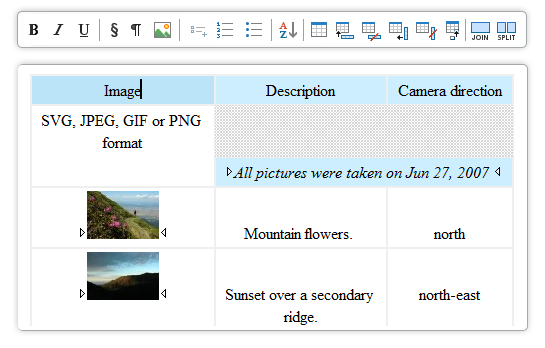
You can create tables, join or split cells, add or remove rows easily.

Table Toolbar

A TEI table example. The caret is positioned between two cells.

TEI Table

Column and Row Table Operations

By allowing to select entire rows and columns <oXygen/> you can easily copy or move table data using copy/paste and drag and drop operations.

Table selection

Easy TEI XML Source Editing

Choosing one of the TEI templates, <oXygen/> inserts a TEI document skeleton and assists you in validation and tag entry as you go along.

TEI Editing

Transforming TEI documents to PDF or HTML in <oXygen/> with a Single-Click

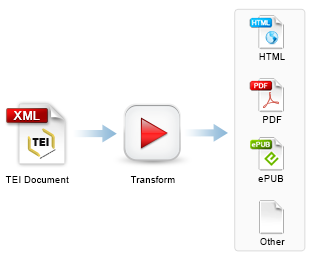
It is so easy to transform the TEI documents in PDF or HTML: just select one of the predefined scenarios for TEI and click on the "Transform now" button.

TEI Transformation

Change Tracking

Change Tracking is a way to keep a history of the changes made to a document. When change tracking is enabled, the inserted and deleted content is highlighted in the document allowing you to easily identify the affected regions. Also, tracked changes can be rendered in callouts (balloons) displayed at the side of the document, with connecting lines pointing to the changed content.

Change Tracking Toolbar

Multiple Authors Support

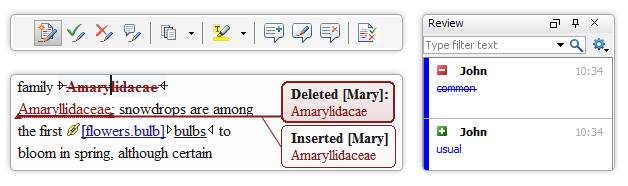
<oXygen/> supports changes from multiple authors, rendering each author changes with different colors.

For each change <oXygen/> stores the author and the date when that change was performed. The name of the author who is currently making changes and the colors can be customized from the Track Changes preferences page. It is possible to add comments to the changes.

Change Tracking in the Author page

In the screenshot you can see how various insert/delete changes made by various authors are displayed (the option to display changes as balloons is on).

Change Management

You can review the changes made by you or other authors and then accept or reject them using the Track Changes toolbar buttons or by using the change management dialog.

Display Review Comments as Callouts

When you annotate your XML documents, the comments are displayed in the Author view as side callouts (balloons) showing also additional information like the author and the comment time.

The comment support is not limited to a document type (DocBook or DITA for instance). You can use it on any document that is opened in the Author editing mode. The comment data is stored in the XML document as processing instructions, so it will not interfere with your XML tool chain.

Comments in the Author page

You can access the comments actions from the application toolbar:Comments Toolbar