XML Grid Editor
Synchronized XML Editing
The editing area in Oxygen consists of three main tabs (modes): Text, Grid, and Author editing modes. The Grid editing mode is available when editing files that are recognized as XML.
The tabs (modes) are synchronized with each other so that you can quickly switch between them.
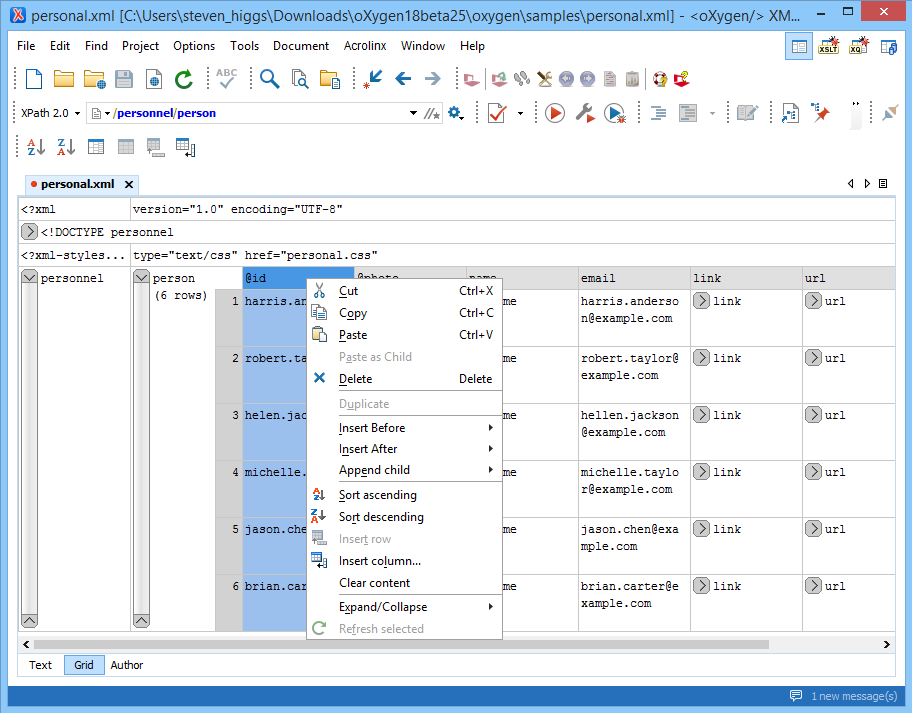
Most of the actions available in the Text editing mode are also available in the Grid mode, including common editing actions such as Undo and Redo. Operations are available for row and column addition/deletion and table sorting and you can organize your XML documents by moving nodes around, using drag-and-drop. You can easily identify nodes in a document by using the find and replace action, XPath toolbar, or XPath builder.
XML Grid Layout
XML documents are displayed in the Grid editing mode as a structured layout of nested tables where the text content can be modified without directly interacting with the XML markup. Oxygen displays the child elements and attributes of recurring elements as columns. The tables can be expanded or collapsed to show or hide the elements, as needed. Also, the document structure can easily be changed with drag-and-drop operations on the grid components.
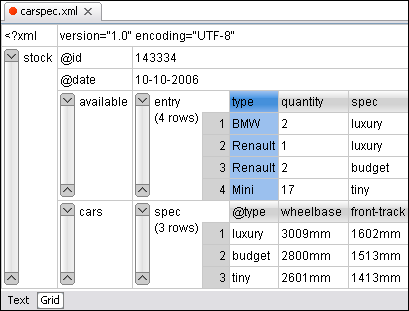
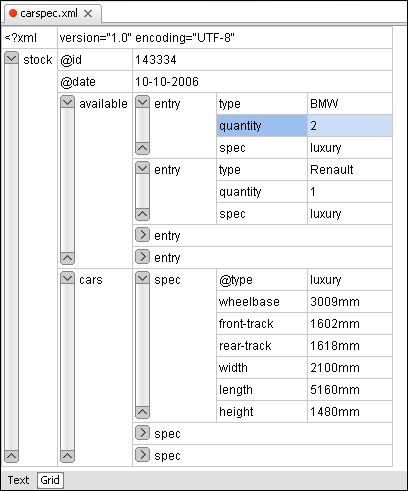
There are two layouts available in Grid mode:
- Grid Layout - Attempts to find recurring elements and groups them in tables.
- Tree Layout - Shows the direct structure of the XML document.
Grid Operations
By grouping the recurring structures, Oxygen offers the possibility to manipulate the data with table-specific operations.
- Table sort - This is done by selecting a column and choosing an action (Sort Ascending or Sort Descending). Oxygen analyzes the data type of the column and decides what kind of comparison to perform (numeric or text).
- Insert columns - The new columns become child elements or attributes within the recurring nodes.
- Rename columns - Changing a column name renames all the elements or attributes that form the column.
- Insert new rows - A new table row represents a new element instance, similar to the repetitive ones from the table.
- Delete or duplicate cells, rows, and columns - You can also preserve a column while removing all of its data content.
- Node insertion or deletion - These type of operations can be done on any node.
The grid behaves like a form, allowing you to use common keyboard navigation (arrow keys, page up/down, etc.)
Content Completion Assistant
If an edited document uses a schema (XML Schema, DTD, Relax NG schema, etc.), you can use the Content Completion Assistant in the Grid editing mode. In the following image, the Content Completion Assistant is used to insert an attribute while modifying an XML Schema in the Grid mode.
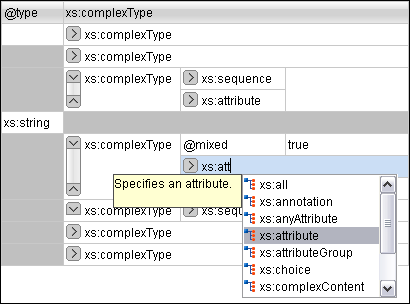
When inserting an element whose definition indicates required content (attributes, sub-elements, or both), Oxygen automatically adds those required nodes into the grid.
Find All Elements Action
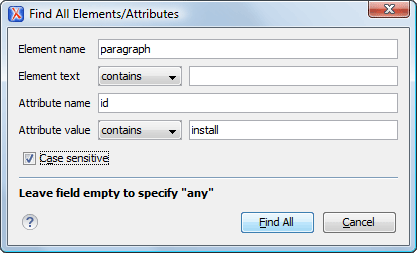
The Find All Elements action is available in all the XML editing modes (Text, Author, and Grid). It provides an easy way to search for XML elements using a tag name, attribute name, or attribute value.
Unicode Support
Unicode is fully supported in the XML Grid editing mode. It is possible to change the text orientation when you are editing XML documents that contain right-to-left or bidirectional text.
Grid Configuration
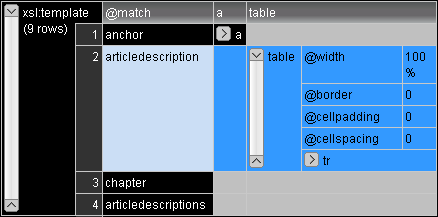
You can customize the appearance of Grid mode according to your needs. For instance, you can change the font, cell background or foreground color, default width of the columns, or even the color gradients of the table header.
In the following image, the grid has been configured to use a high contrast color scheme.